

How to Run LLMs Locally: Ollama, llama.cpp and LM Studio
Run LLMs locally step by step with Ollama, LM Studio or llama.cpp. Check speed and memory for your laptop and call a local model from Python.
Think of the water supply in an Indore flat. The municipal line is convenient, someone else maintains it, and you pay by usage. Many buildings also keep a tank on the roof: you fill it once, it serves you during outages, and nobody outside sees how much you use.
A hosted LLM API is the municipal line. A local LLM is the rooftop tank. You need space for it, the pressure depends on your pipes, and you maintain it yourself, but it is yours.
This guide shows how to set one up and how to tell whether your machine can cope.
What does it mean to run an LLM locally?
Mapping the analogy: the tank is the model file on your disk, usually a quantised GGUF file of a few gigabytes. The pump is the inference runtime, such as llama.cpp or Ollama, that loads the file and generates tokens. The pipe width is your memory bandwidth, and the tap in your kitchen is a local HTTP API your apps call.
Running an LLM locally means using an inference runtime on your own computer to load an open-weight model's files into memory and generate text on your CPU or GPU, so prompts and outputs never leave the machine.
The background, what open-weight models are, how quantisation works and how much memory a model needs, is in open-source LLMs explained. This article is the hands-on part: tools, commands, performance and code.
Why bother? Four common reasons:
- Privacy. Client documents, medical notes or source code stay on your machine.
- Cost. After the download there is no per-token bill, which suits heavy batch jobs.
- Offline work. It works on a train or during an internet outage.
- Learning. You see the moving parts: context limits, quantisation and speed.
How a local LLM setup fits together
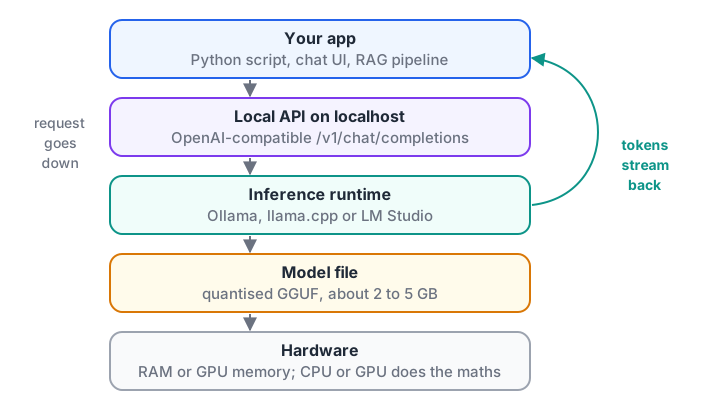
Every local setup has the same layers: an app, a local API, a runtime and a model file in memory.
The key design point is the middle layer. Ollama, llama.cpp's server, LM Studio and vLLM all offer an endpoint shaped like the OpenAI Chat Completions API. Your code talks to localhost instead of a cloud URL, and nothing else changes.
Option 1: run a model with Ollama in three commands
Ollama is a free, open-source tool that downloads, manages and serves models with simple commands. It runs on Windows, macOS and Linux and uses a supported GPU automatically.
# Linux install (Windows and macOS: use the installer from ollama.com)
curl -fsSL https://ollama.com/install.sh | sh

ollama pull llama3.2          # download a small model (about 2 GB)
ollama run llama3.2           # chat in the terminal; type /bye to quit
ollama list                   # models on disk
ollama ps                     # models in memory, and whether they use CPU or GPU

# Ollama also serves an API on port 11434
curl http://localhost:11434/api/chat -d '{
  "model": "llama3.2",
  "messages": [{"role": "user", "content": "Give me one fact about Indore."}],
  "stream": false
}'
Browse the model library on ollama.com to find other families and sizes; tags such as :1b or :8b choose the size. To bake in a system prompt and settings, write a Modelfile and create your own named model.
FROM llama3.2
PARAMETER temperature 0.3
PARAMETER num_ctx 8192
SYSTEM "You answer questions about Indore's food in two sentences."
Then run ollama create poha-guide -f Modelfile and ollama run poha-guide. The num_ctx line matters: Ollama's default context window is fairly small, and long prompts are silently cut to fit it.
Option 2: LM Studio, llama.cpp and vLLM
LM Studio: a desktop app
LM Studio is a free desktop app for Windows, macOS and Linux with a chat window, a built-in model search, and sliders for context length and GPU offload. Its developer tab starts a local OpenAI-compatible server, on port 1234 by default.
llama.cpp: maximum control
llama.cpp is the open-source C/C++ engine that many local tools, Ollama included, build on. Using it directly gives you every option. Install a prebuilt release or use a package manager, then start its server:
# download a GGUF model from Hugging Face and serve it on port 8080
llama-server -hf ggml-org/gemma-3-1b-it-GGUF --port 8080

# or use a local file: 8k context, push as many layers as fit onto the GPU
llama-server -m ./models/my-model-Q4_K_M.gguf -c 8192 -ngl 99 --port 8080
The -ngl flag sets how many layers go to GPU memory. If the model does not fit entirely, lower it and the rest runs on the CPU: slower, but it works. The server also serves a simple chat page at http://localhost:8080.
vLLM: GPU servers with many users
vLLM is a high-throughput serving engine for Linux machines with a capable GPU. It batches many users' requests together, ideal for a team's internal server. It gets its own article: serving LLMs with vLLM.
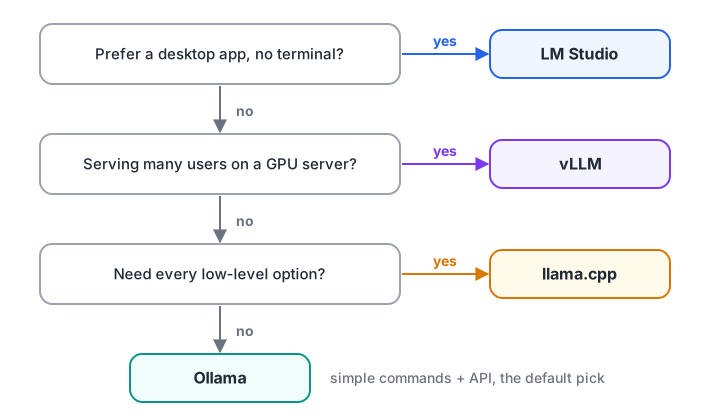
Pick by how you work, not by which tool is "best". They share model formats and API shapes.
| Tool | Interface | Runs on | Best for |
|---|---|---|---|
| Ollama | CLI + API | Windows, macOS, Linux; CPU or GPU | Developers who want it working in minutes |
| LM Studio | Desktop app + API | Windows, macOS, Linux | Exploring models without the terminal |
| llama.cpp | CLI + server | Almost anything, including Raspberry Pi | Fine control, unusual hardware, scripts |
| vLLM | Python + API server | Linux with NVIDIA or AMD GPUs | Many users, high throughput |
| Hugging Face transformers | Python library | CPU or GPU | Research, fine-tuning, custom pipelines |
How fast will a local LLM be?
To generate each token, the runtime has to read nearly all the model's weights from memory. So the main speed limit is memory bandwidth: how many gigabytes per second your RAM or VRAM can deliver. A rough estimate is bandwidth divided by model size.
# generating one token reads (almost) every weight once, so memory bandwidth sets the speed
hardware_gbps = {                       # rough peak memory bandwidth, GB/s
    "laptop, dual-channel DDR4": 50,
    "laptop, DDR5": 80,
    "Apple M-series Pro chip": 150,
    "desktop GPU, 12 GB VRAM": 360,
}
models_gb = {"3B at 4-bit": 2.0, "8B at 4-bit": 4.9, "14B at 4-bit": 8.9}
efficiency = 0.6                        # real runtimes reach only part of the peak

print(f"{'':<28}" + "".join(f"{m:>14}" for m in models_gb))
for hw, bw in hardware_gbps.items():
    row = [bw * efficiency / size for size in models_gb.values()]
    print(f"{hw:<28}" + "".join(f"{tps:>10.0f} t/s" for tps in row))

print("\nReading speed of most people: roughly 5 to 8 tokens per second")
These are ballpark numbers, but the pattern holds: a GPU or high-bandwidth chip makes a big difference, and an 8B model on an ordinary laptop is usable but not snappy. Reading the prompt, called prefill, is a separate phase that runs much faster per token, because tokens are processed in parallel.
Context length costs memory too
Every token in the conversation stores keys and values in the KV cache, explained in KV cache explained. For long contexts this can rival the weights themselves:
# KV cache: keys and values stored for every token, in every layer
layers, kv_heads, head_dim, bytes_fp16 = 32, 8, 128, 2      # an 8B-class model
per_token = 2 * layers * kv_heads * head_dim * bytes_fp16  # 2 = one key + one value

weights_gb = 4.9                         # the 8B model at 4-bit
ram_gb, os_and_apps_gb = 16, 5

print(f"KV cache per token: {per_token / 1024:.0f} KB")
for ctx in [4_096, 8_192, 32_768, 131_072]:
    kv_gb = per_token * ctx / 1024**3
    total = weights_gb + kv_gb
    fits = "fits" if total <= ram_gb - os_and_apps_gb else "too big"
    print(f"context {ctx:>7,}: KV {kv_gb:5.1f} GB + weights {weights_gb} GB = {total:5.1f} GB  -> {fits}")
So "supports 128k context" on a model card does not mean your laptop can use 128k. Set the context to what you actually need, such as 8k for chat or 16k to 32k for document questions.
Quick check
Your laptop has DDR5 RAM (about 80 GB/s). Roughly what limits generation speed for an 8B model?
Token generation is usually memory-bound: speed is roughly bandwidth divided by model size.
Call your local LLM from Python
Because the servers speak the OpenAI format, the standard openai package works. Point base_url at the local server; the API key can be any placeholder string. This needs a running server, so it runs on your machine, not in the browser.
from openai import OpenAI

# Ollama: port 11434. LM Studio: 1234. llama-server: 8080. vLLM: 8000.
client = OpenAI(base_url="http://localhost:11434/v1", api_key="local")

resp = client.chat.completions.create(
    model="llama3.2",
    messages=[{"role": "user", "content": "Explain RAG in two sentences."}],
    temperature=0.2,
)
print(resp.choices[0].message.content)
Ollama also has its own Python package (pip install ollama):
from ollama import chat

response = chat(model="llama3.2",
                messages=[{"role": "user", "content": "Name two Indore street foods."}])
print(response.message.content)
To see what actually travels over the wire, here is the request body and a streamed reply, built and parsed offline:
import json

# the request body every OpenAI-compatible local server accepts at /v1/chat/completions
request = {
    "model": "llama3.2",
    "messages": [{"role": "system", "content": "Answer in one sentence."},
                 {"role": "user", "content": "What is poha?"}],
    "temperature": 0.3,
    "stream": True,
}
print("POST http://localhost:11434/v1/chat/completions")
print(json.dumps(request)[:90] + "...")

# a streamed reply arrives as server-sent events, one small JSON chunk per line
stream = '''data: {"choices":[{"delta":{"content":"Poha is"}}]}
data: {"choices":[{"delta":{"content":" flattened rice"}}]}
data: {"choices":[{"delta":{"content":" cooked with onion and spices."}}]}
data: [DONE]'''

answer = ""
for line in stream.splitlines():
    payload = line.removeprefix("data: ")
    if payload == "[DONE]":
        break
    answer += json.loads(payload)["choices"][0]["delta"].get("content", "")
print("\nassembled answer:", answer)
Streaming sends small chunks as they are generated. The parameters you set here are the same ones covered in LLM generation parameters.
Quick check
Why can the same Python code talk to Ollama, LM Studio and a cloud API?
Changing base_url (and the model name) is enough, because the request and response shapes match.
Common mistakes when running LLMs locally
- Downloading a model that is too big. Check the file size first: it must fit in RAM or VRAM with a few gigabytes to spare.
- Using the base model instead of the instruct one. Base models ramble; pick the "instruct" or "chat" variant.
- Forgetting the context setting. A small default context silently drops the start of long prompts, which looks like the model "forgot" your instructions.
- Expecting cloud-level quality from a 3B model. Small models are good at focused tasks such as extraction, and weaker at broad reasoning.
- Exposing the server to the network. Local servers often have no authentication. Keep them bound to
localhostunless you add proper protection.
Key takeaways
- Running an LLM locally means a runtime loads an open-weight model file into your memory and serves it on localhost.
- Ollama and LM Studio are the quickest starts; llama.cpp gives full control; vLLM is for GPU servers with many users.
- Speed is mostly memory bandwidth divided by model size; long contexts add KV-cache memory.
- Use an OpenAI-compatible client with a local
base_urlso code moves easily between local and cloud models. - Choose the smallest instruct model that passes your own tests, and set the context length deliberately.
You have now finished the LLM fundamentals series, which started with what is an LLM. A good next project is to point a RAG pipeline at your local model. Before your next interview, practise aptitude and coding rounds on Debugshala Test.
FAQ
Can I run an LLM on a laptop without a GPU?
Yes. Runtimes like llama.cpp and Ollama run quantised models on the CPU. A 3B to 4B-class model at 4-bit is comfortable on 8 GB of RAM, and an 8B-class model works on 16 GB, at a few to around ten tokens per second depending on your memory speed.
Is Ollama free to use?
Yes. Ollama is free and open source, and the models in its library are free to download, though each model has its own licence that governs how you may use it, especially commercially. Running locally costs only your electricity and hardware.
Which is better, Ollama or LM Studio?
Neither is strictly better. Ollama suits developers who want terminal commands and an API that runs in the background. LM Studio suits people who prefer a desktop app with a chat window and visual settings. Both run GGUF models and offer OpenAI-compatible local servers.
Are local LLMs private?
The model runs on your machine, so prompts and outputs are not sent anywhere by the inference itself. Check the tool's own settings for update checks or optional telemetry, keep the server bound to localhost, and remember that downloading a model still requires internet once.
Where can I learn to run and build with local LLMs in Indore?
Debugshala's Generative AI classes include hands-on work with open models, local runtimes and RAG apps, taught offline at Old Palasia in English and Hindi. You can attend a free demo class first; see Debugshala's practical GenAI course in Indore for details.
From the team behind this site
Go further with the Generative AI Course at Debugshala
These tutorials are written by Debugshala, a training and placement institute at Old Palasia, Indore. The classroom course adds live mentoring, real projects and interview preparation.
- Offline classes at Old Palasia, Indore
- Free demo class before you pay
- Non-IT, fresher and year-gap friendly
- Placement assistance
700+ students placed · 200+ hiring partners · 4.9★ Google rating
